



Ive noticed some people asking how to do forum avatars in the help desk, so i compiled this guide.
Ok im sure you might know some of this but if you dont it would be helpful.
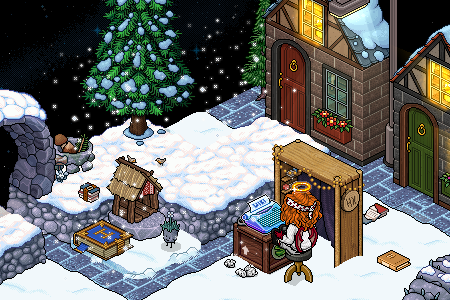
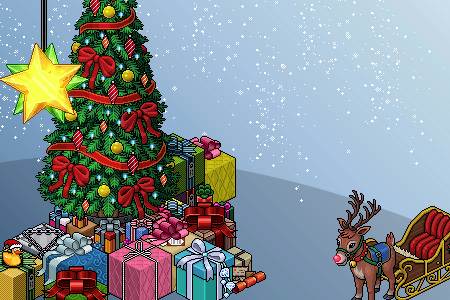
Make your main section (ie screenie from habbo)
Once you are happy with what you see press Alt + Print Screen (If you press Alt it means it only screenies the window you are on) Then paste (or press CTRL + V) in an image editing program like paint.
Then you need to select the bit of the screenie you want to use. Then copy it (or press CTRL + C), and paste (or press CTRL + V) in a new paint window.
Make the avatar a suitable size by checking your limits in User CP -> Edit avatar.
Scroll down... at the botom of the custom avatar section there should be a notice like the following 'Note: The maximum size of your custom image is ** by ** pixels or ** KB (whichever is smaller).' You need to change your settings to this so that your avatar will be uploadable.
To do this on paint go to Images, then Attributes. This is where you can change the settings. This will be the maximum size your avatar can be.
Lettering
You can get the habbo lettering generated for you using this linkhttp://splogger.com/habbotext/index.asp?what=send
Also if you want to colour the background, you can get a list of HTML colour codes at http://html-color-codes.com/ You just copy/paste these codes and then you get a coloured background.
Now you need to do the print screen thing again. Its pretty much the same, then you paste the little bit you want into the main window with the edited screenie main part.
Once youre happy with how it looks, you must save it as a GIF, JPG, or PNG file.
Remember that you need it to be within the specified dimensions for it to work.
Uploading
Go to User CP -> Edit avatar. Click Browse (next to 'Upload an Avatar From Your Computer') If you have stuck to this guide (or if i managed to make it make sense HMM) your avatar should upload successfuly.

Results 1 to 1 of 1
Thread: Avatar Guide :)
-
 Avatar Guide :)

 Posting Permissions
- You may not post new threads
- You may not post replies
- You may not post attachments
- You may not edit your posts